
DinoMark
A calm Markdown reader for Windows. Made for reading, not for editing.
Overview
I'm building DinoMark because I keep a lot of notes, guides and READMEs as Markdown and simply want to read them without opening an editor. DinoMark shows them calm and tidy like a good book page, with nothing in the way. It is made for reading, not for editing. DinoMark is still in the middle of development, but everything in the list already works.
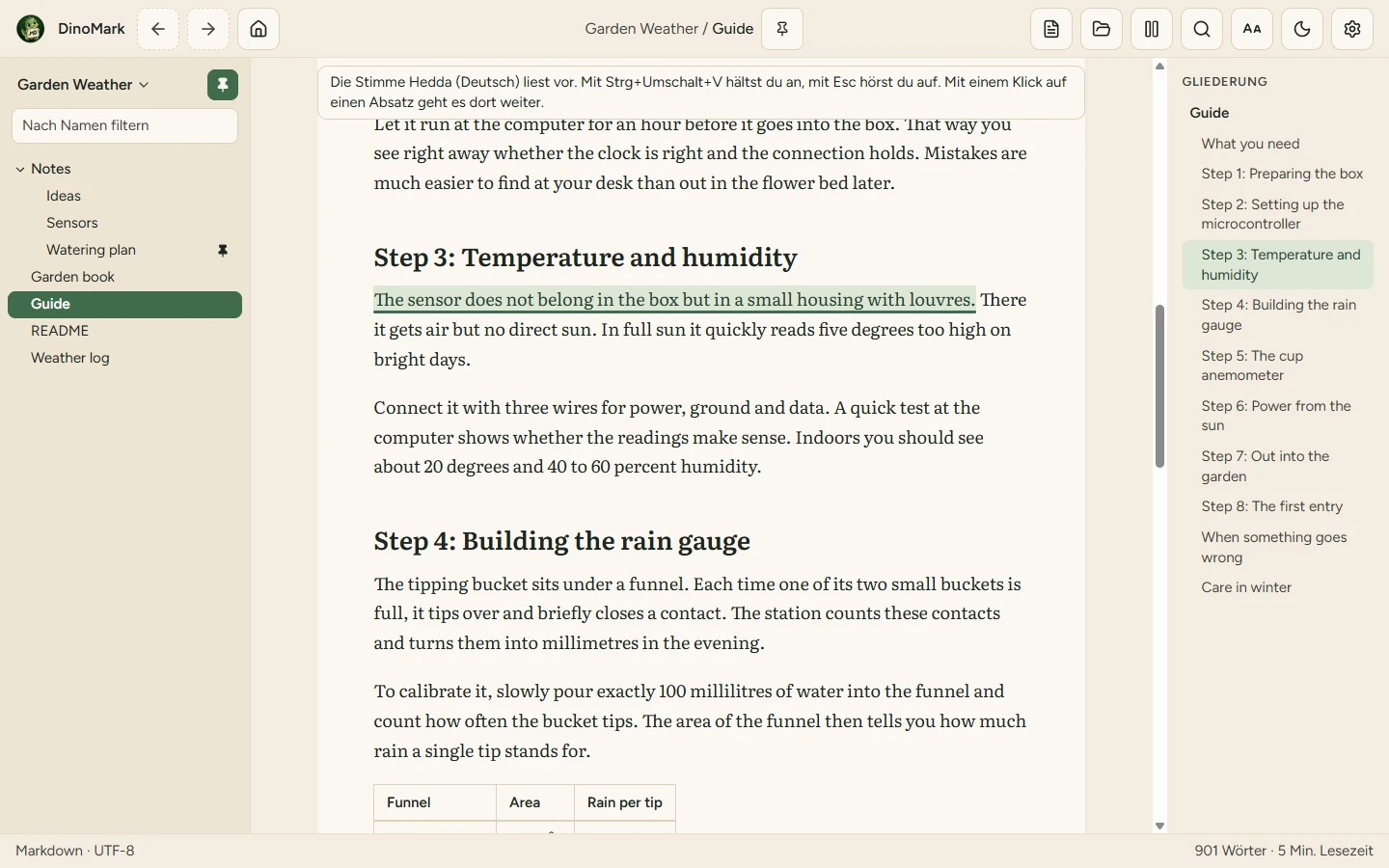
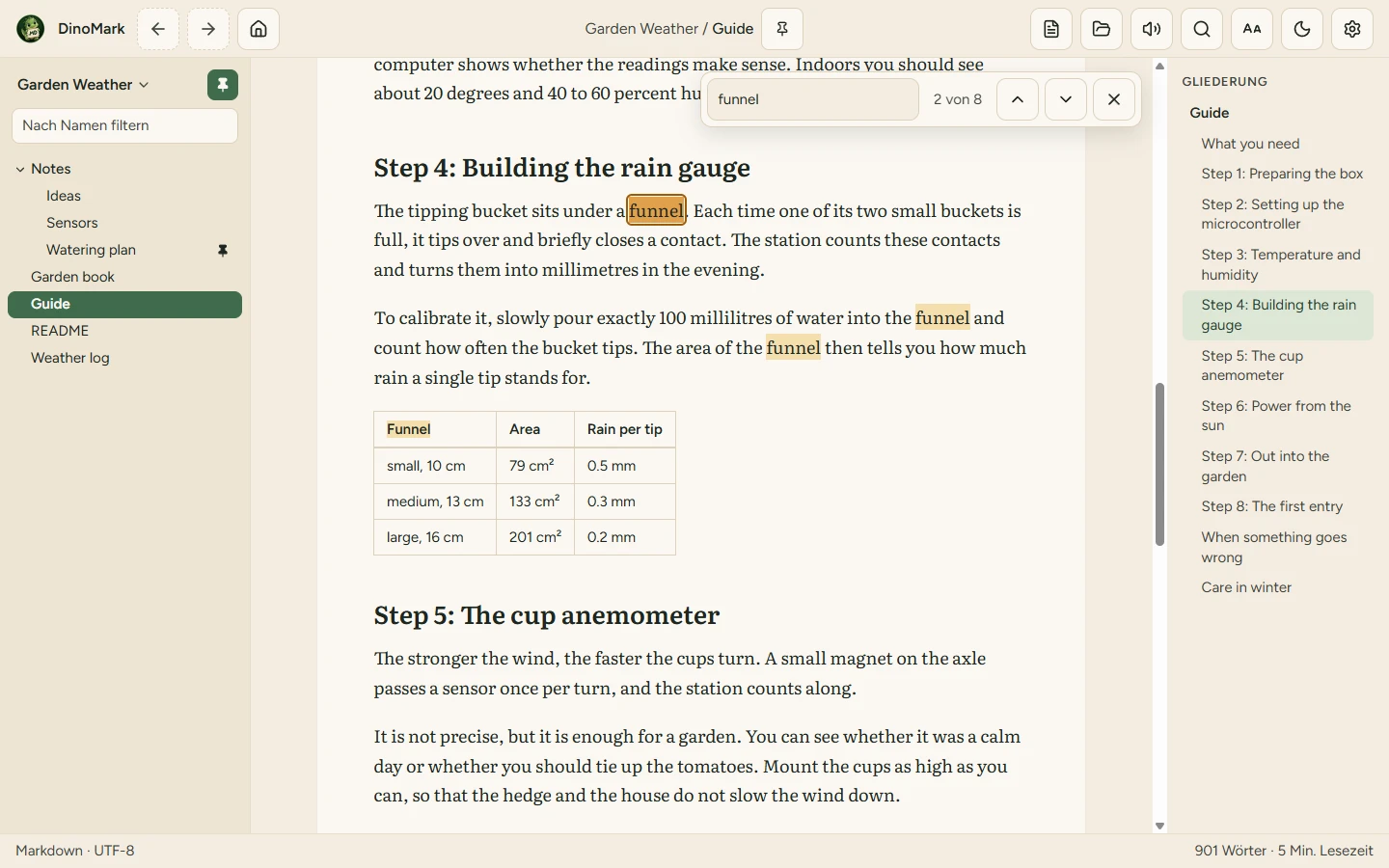
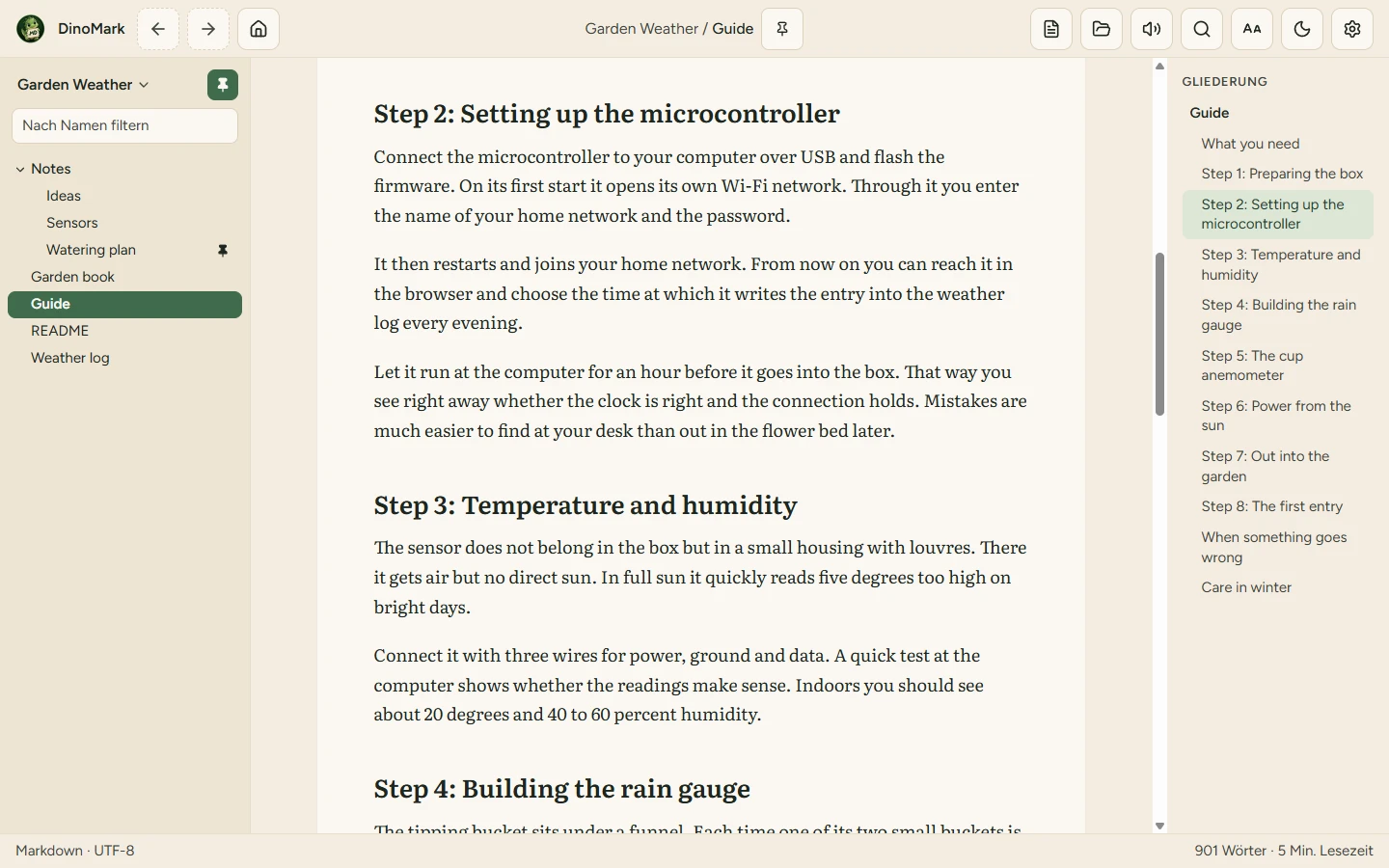
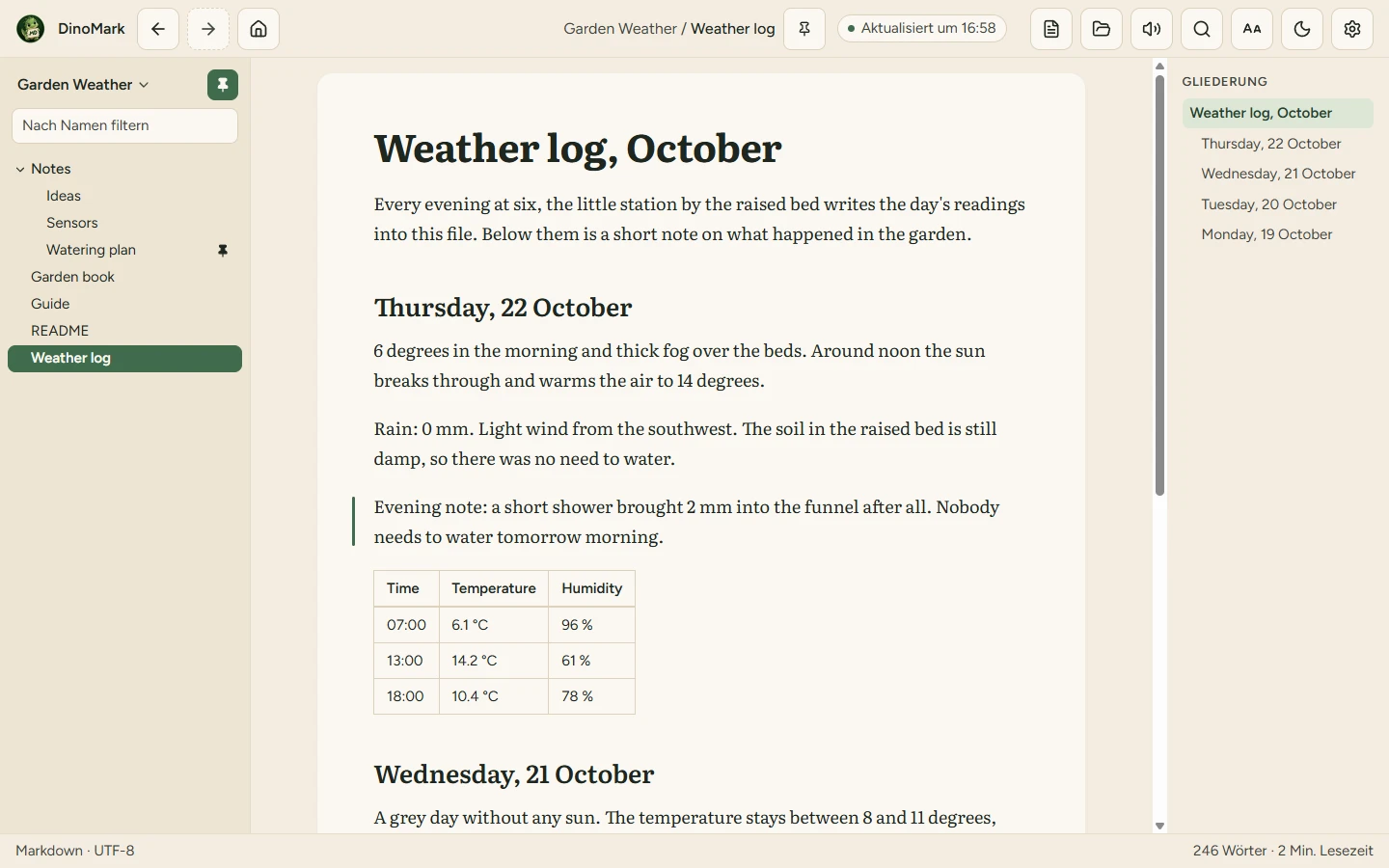
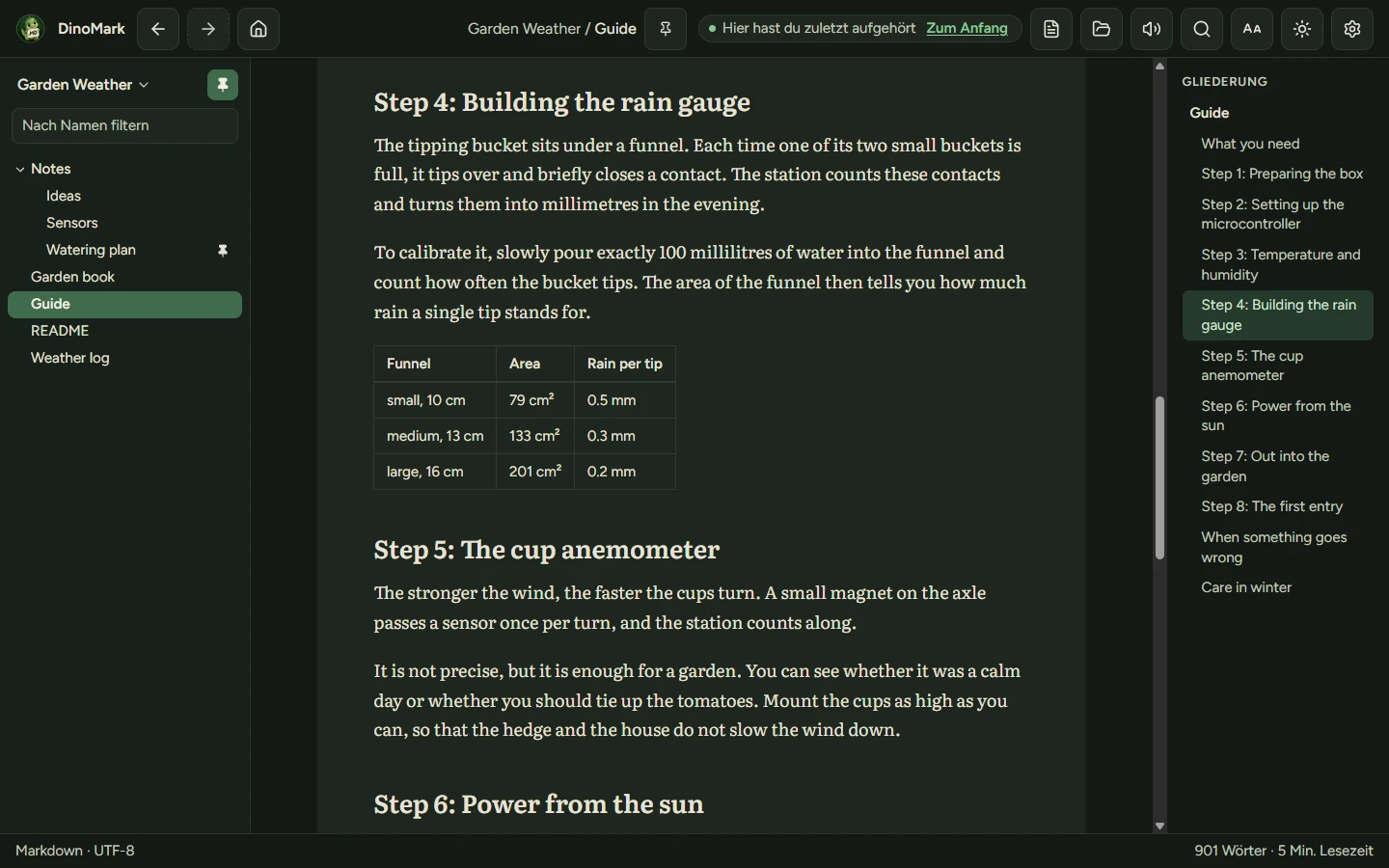
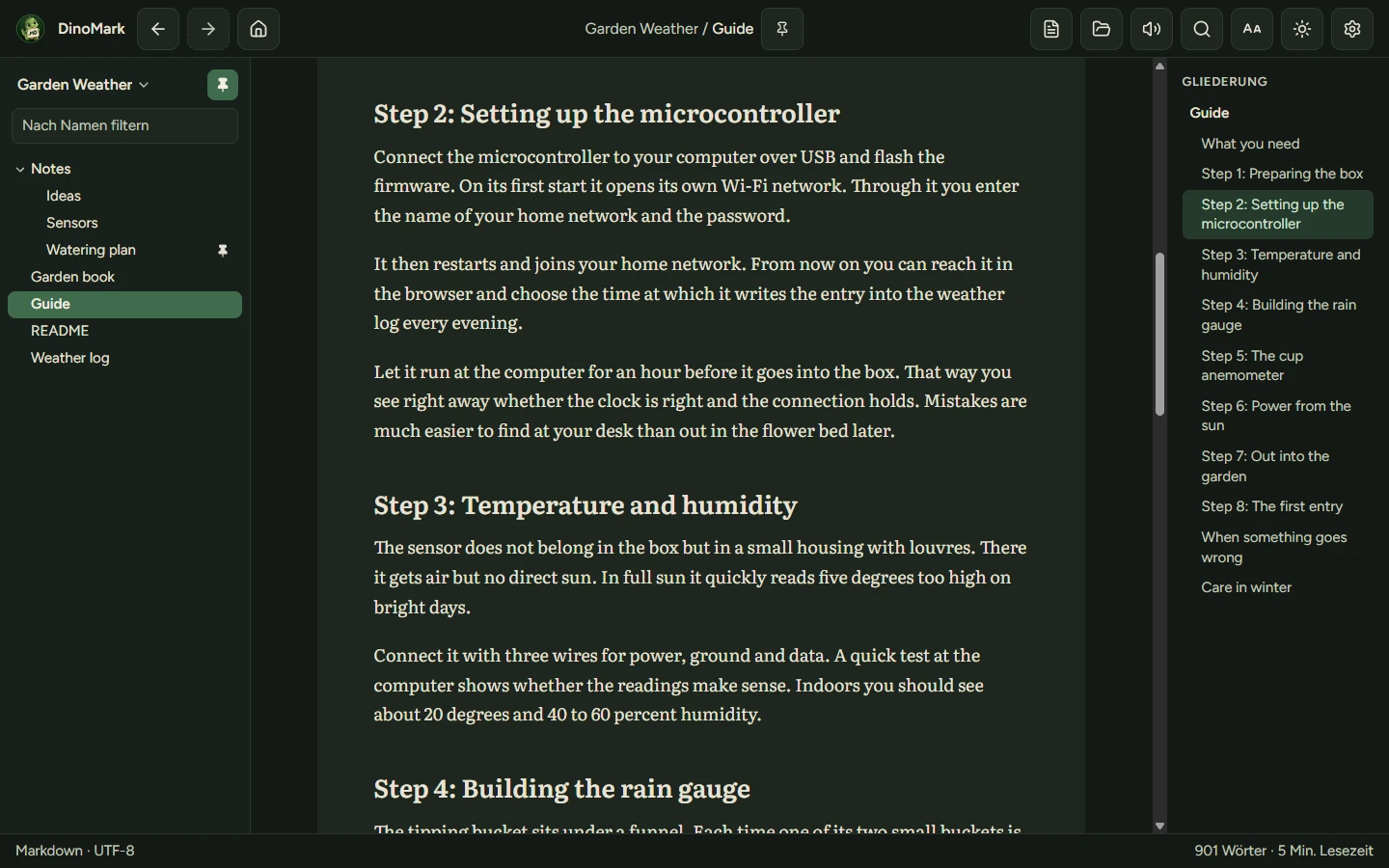
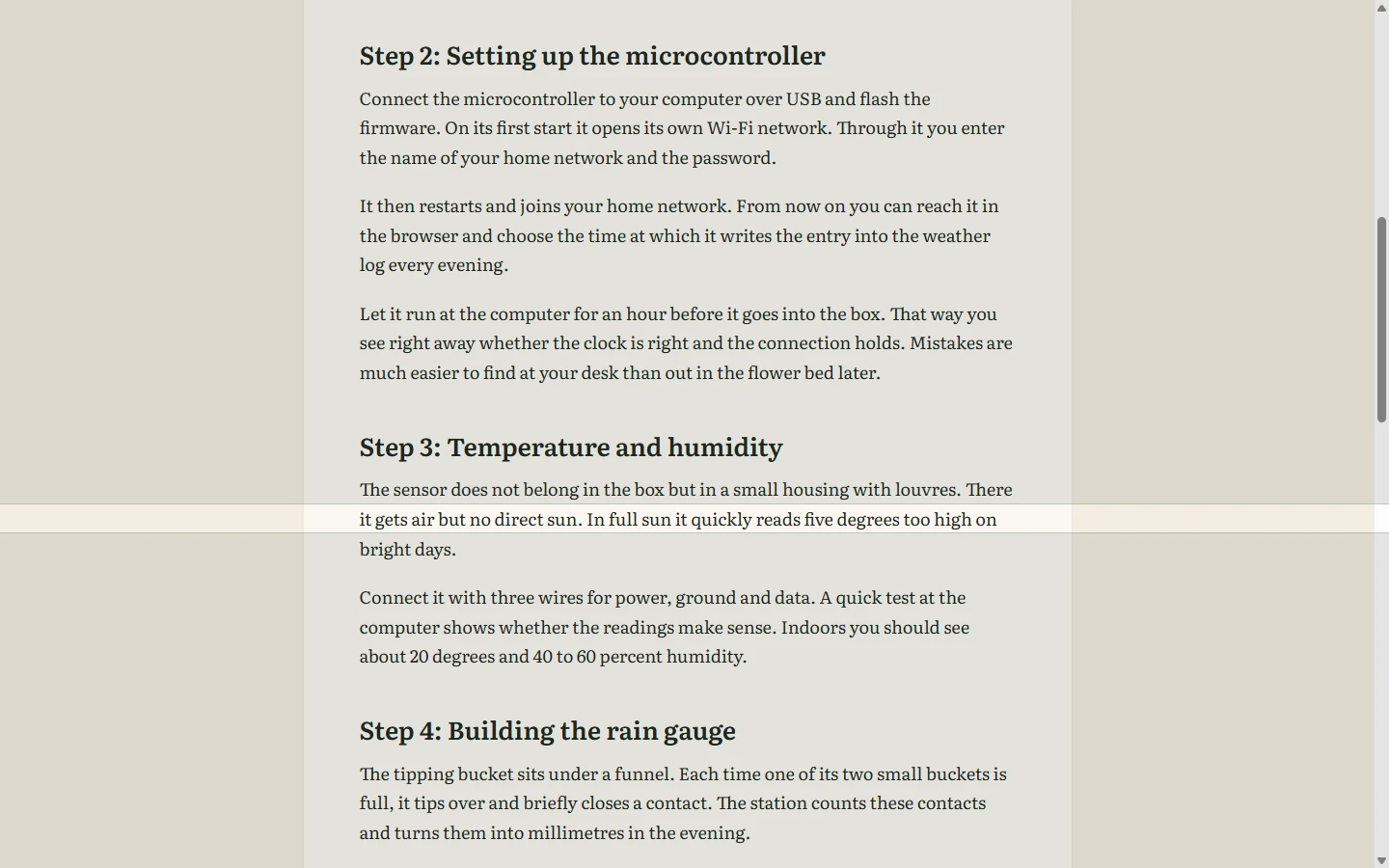
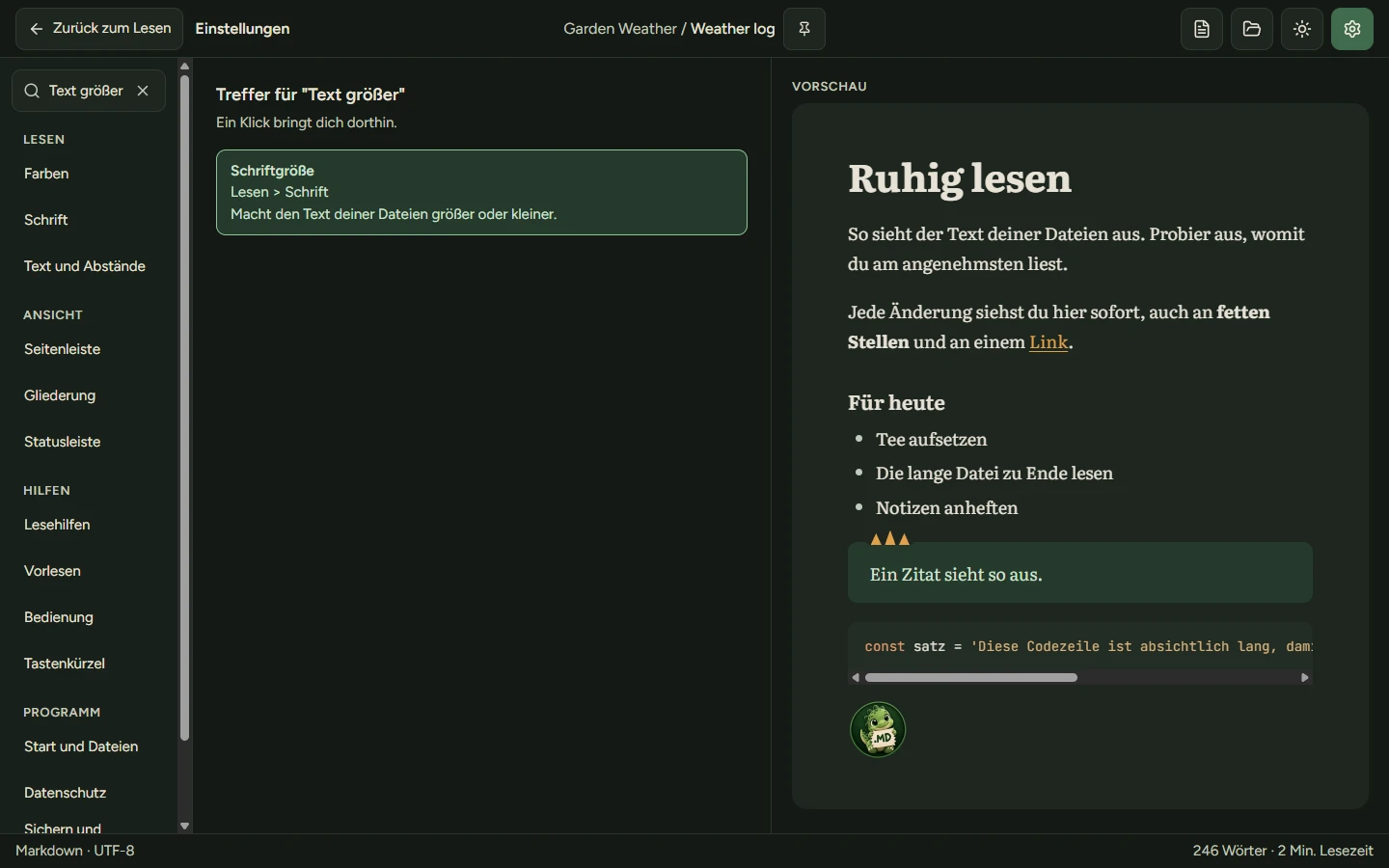
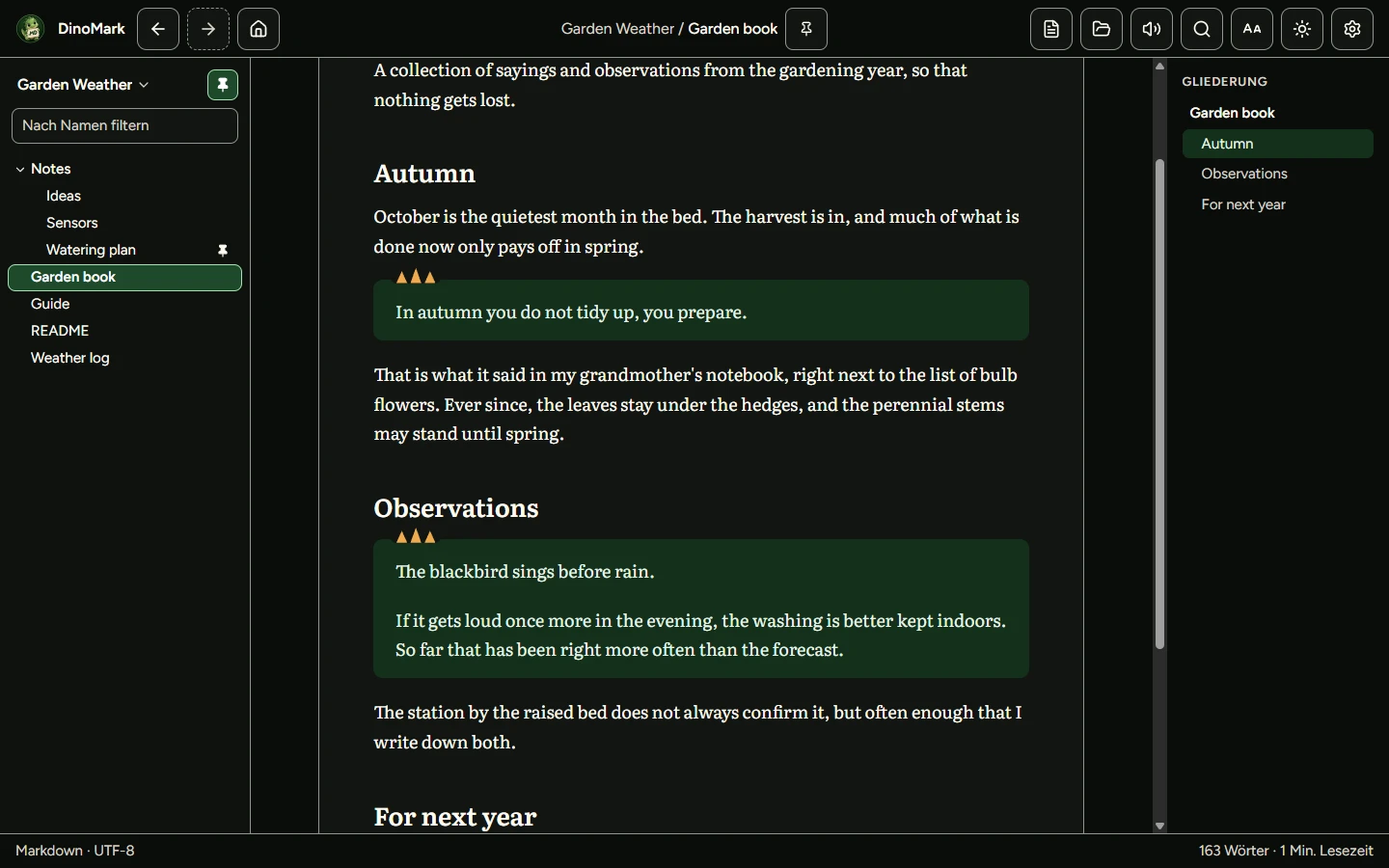
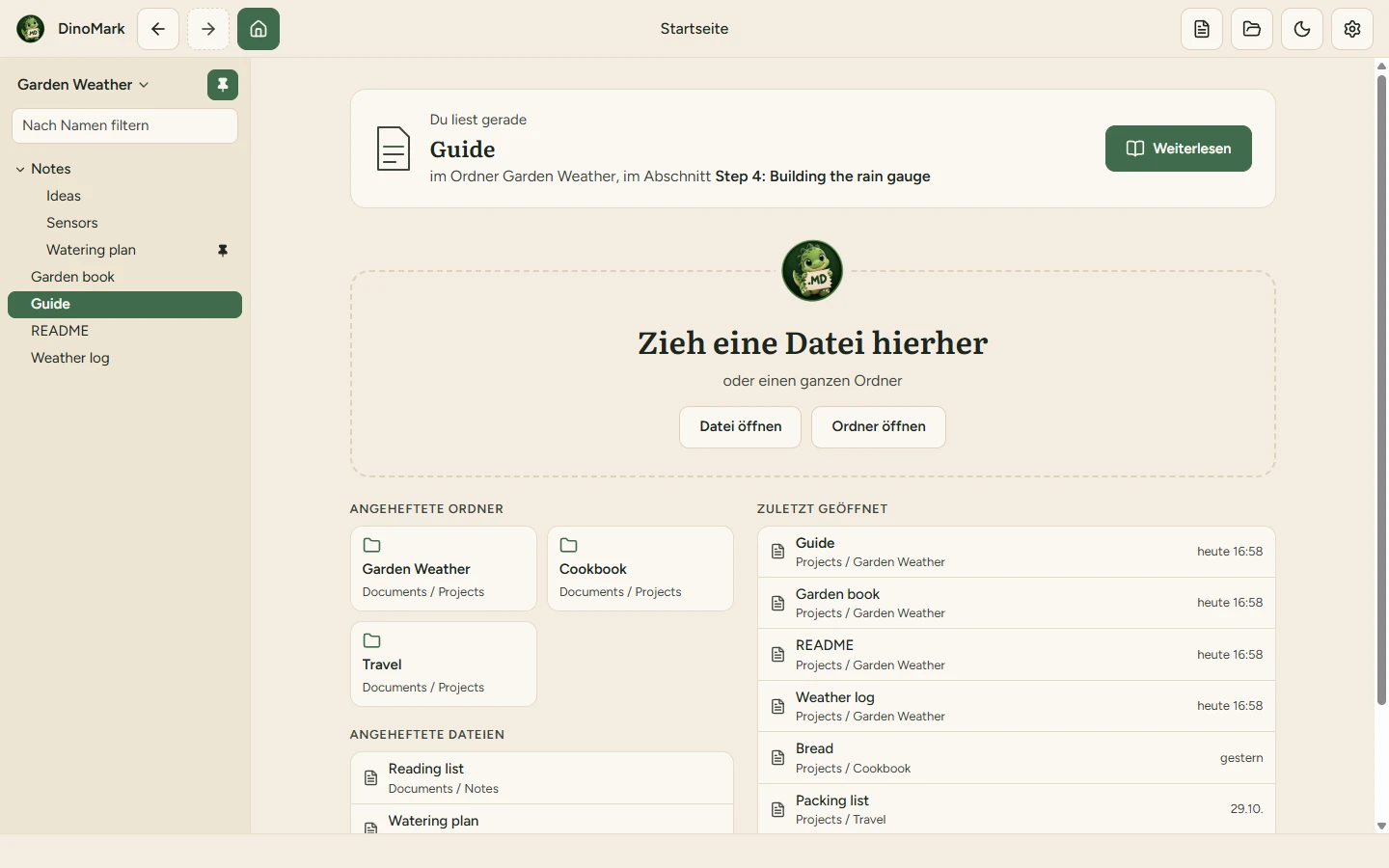
The pictures show DinoMark in German, as it only speaks German so far. The files in them are English.
What DinoMark can do today:
- Opening: A file from the dialog or by drag and drop, or a whole folder at once. The sidebar shows it as a tree with a name filter, along with pinned folders and files and the ones you opened last.
- Start page: DinoMark opens on a start page. You can drop files there and find your pinned folders and files and the ones you opened recently, with the time. The button with the house or Alt+Home takes you there at any time, and the open file stays open. A card there shows what you are reading, including its folder and section, and Weiterlesen ("keep reading") takes you straight back to your place. You choose whether DinoMark starts with the start page, the file you opened last or the folder you opened last. It also remembers the size and position of its window, which you can switch off.
- Rendering: Headings, lists, task lists, tables, quotes, footnotes, local images and code with syntax colours. For colour blindness there are code colours that are easy to tell apart.
- Links: A link to another file opens it in DinoMark, including Obsidian-style wiki links and embedded images. Back and forward take you to the spot where you were. A link to the internet opens your browser only after a warning.
- Outline: The headings of the file sit to the right of the text, with the section you are reading highlighted. A click jumps there, and back takes you to where you were. You choose how deep the outline goes. In narrow windows DinoMark hides it.
- Search: With Ctrl+F, F3 or the button with the magnifying glass, you search the open file. DinoMark highlights every match, jumps to the first one from where you are and shows how many there are. Enter or F3 takes you to the next one, and with Shift you go back. Code blocks, tables and quotes are searched too, and when you switch files, the search word stays.
- Focus mode and reading ruler: Ctrl+Shift+F hides everything but the text, Esc brings it back. You can switch on the reading ruler: it highlights the line under the mouse and dims the rest a little, and the arrow keys move it line by line.
- Reading aloud: A button at the top reads the file aloud from the first paragraph you can see. The sentence being spoken is marked, and the page follows along. Ctrl+Shift+V pauses and goes on, Esc stops. DinoMark only uses voices that are on your computer, and you choose the voice and the speed.
- Controls: If you like, the buttons get bigger with more room between them, and their names appear next to the icons. When you work with the keyboard, the frame around the selected element can be stronger and have a colour of its own. You set every keyboard shortcut yourself, and a question mark explains difficult settings in plain language.
- Reloading on its own: When you change the open file in another program, say while writing in Obsidian, DinoMark shows the new version right away and keeps your place. Next to the file name it says when the file was updated, and changed passages get a short mark in the margin. If the file is renamed or moved, DinoMark follows it. You can switch this off, and then DinoMark only tells you that the file changed and you reload it yourself.
- Reading position: When you open a file again, it opens where you stopped, and a button takes you back to the top. DinoMark remembers this for up to 500 files, and you can switch it off in the settings.
- Looks: the light theme "Fossil & Farn" or the dark one "Jura-Nacht", following your system by default, plus two colour schemes with high contrast. You pick the accent colour from six: moss, petrol, night blue, plum, berry and terracotta. If Windows uses a contrast theme, DinoMark takes on its colours, which you can switch off. You set the font size and the text width yourself.
- Settings: Every setting lives in exactly one place, and next to them a preview that looks like the reading view shows right away how your text will look. Export saves your settings and your pinned folders and files to a file, and Import brings them back, on another computer too. One button resets everything to the defaults, and your pinned items, recent files and reading positions stay. A search field at the top finds every setting, even if you call it something else.
Versions
0.2.8
Changed
- The hint shown while reading aloud is now as wide as the text, so no line peeks out beside it.
0.2.7
Added
- The settings have a search field at the top. It also understands everyday words: "Text größer", for example, finds the font size. One click takes you to the setting.
0.2.5
Added
- A button with a magnifying glass in the header opens the search. With "Knöpfe beschriften" on, it is labelled "Suchen".
0.2.4
Added
- Press Ctrl+F to search the open file. All matches are highlighted, F3 jumps to the next one, Shift+F3 goes back, and Esc closes the search.
- The search also finds text in collapsed sections and opens them when it jumps there. When the Eigenschaften at the top of the file are open, it searches them too.
0.1.108
Changed
- Buttons, menus and settings use slightly larger text, and grey text is darker and easier to read.
- When you change a shortcut, warnings are now red and marked with a sign.
0.1.106
Fixed
- Wide code blocks can be scrolled sideways with the keyboard. When you move the mouse onto a cut-off name, Windows shows the full name in a small tip. With the keyboard, DinoMark shows its own tip, which closes with Esc. Right-clicking an empty area no longer opens a menu that does not belong to DinoMark.
0.1.105
Changed
- Much of the wording in the Hilfen settings is clearer, for example when you change a shortcut or when no voice is installed.
0.1.104
Fixed
- Esc in the Aa panel no longer stops reading aloud as well. A click into the text during a pause no longer starts reading aloud on its own. In very narrow windows a long code block no longer pushes the whole page sideways.
0.1.103
Changed
- The open file is now also shown in bold in the sidebar and on the start page. You can also change the width of the sidebar through a menu on its edge, without dragging. Menus that open with a right click also open from the keyboard.
0.1.102
Added
- Reading aloud now has a button at the top of the window and its own area in the settings, where you pick the voice, listen to a sample and set the speed.
0.1.101
Added
- DinoMark can read files aloud with a voice on your computer, without going online. The sentence being spoken is highlighted and the view follows along. For now, you start it with Ctrl+Shift+V.
0.1.99
Added
- You can change the shortcuts in the Tastenkürzel area under Hilfen: just press the new keys. If a combination is already taken, DinoMark asks first.
0.1.98
Added
- Ctrl+O opens a file and Ctrl+Shift+L switches between light and dark. The tips on the buttons at the top show their shortcuts.
0.1.97
Added
- Code can use colors that are easy to tell apart even with color vision deficiency. You turn them on in the Lesehilfen area under Hilfen.
0.1.96
Added
- Settings that are not obvious at first have a small question mark next to them. Clicking it explains the setting in plain language.
0.1.95
Added
- The frame that shows where you are when you use the keyboard can be made bolder. You choose its color: your accent color, yellow, orange, blue or pink. It also stands out against colored rows.
0.1.94
Added
- In the Bedienung area under Hilfen you can make buttons and entries larger so they are easier to hit. If you like, the buttons at the top of the window show their names next to the icons.
0.1.92
Added
- The settings have a new group, Hilfen, with aids for easier reading and use. The text can now be set up to twice its normal size.
0.1.90
Changed
- On wide screens a fine line separates the settings from the preview. When you switch to another area, the page starts at the top again.
0.1.89
Changed
- The preview in the settings now looks like the reading view and uses all the available space on large screens, so you can see right away how wide your text will be.
0.1.88
Changed
- The settings have been reorganized into twelve areas in four groups: Reading, View, Controls and App. Every setting lives in exactly one place.
0.1.87
Changed
- When you go to the start page with the house button, a card shows what you are reading, including its folder and section. The Weiterlesen button takes you straight back to your place.
0.1.83
Added
- One button resets all settings to their defaults. Your pinned folders and files, your recent files and the places where you stopped reading stay as they are.
0.1.82
Added
- You can export your settings, together with your pinned folders and files, to a file and import them again on another computer.
0.1.81
Added
- You can choose whether DinoMark starts with the start page, the file you opened last or the folder you opened last.
0.1.80
Added
- A button with a house takes you to the start page at any time, also with Alt+Home. The file you are reading stays open.
- The start page shows what you are reading, and one click on Weiterlesen takes you straight back to your place.
0.1.79
Added
- DinoMark opens on a new start page. You can drop files there and find your pinned folders and files and the files you opened recently, with the time.
0.1.78
Added
- DinoMark remembers the size and position of its window and opens the same way next time. You can turn this off in the settings.
0.1.76
Changed
- Quotes now carry three small spine plates like the dino in the logo.
0.1.75
Added
- Two new color schemes with high contrast, light and dark, for anyone with low vision.
- If Windows uses a contrast theme, DinoMark takes on its colors. You can turn this off.
0.1.74
Added
- Choose from six accent colors in the settings: moss, petrol, night blue, plum, berry and terracotta.
0.1.71
Added
- When the open file changes in another program, DinoMark shows the new version right away and keeps your place.
- A short note next to the file name tells you when the file was updated, and a mark in the margin shows what changed.
- A file you open again picks up where you left off.
The list starts with version 0.1.71. What DinoMark learned before that is in the overview.
Planned
Installer
Last for Windows: an installer, and Markdown files open in DinoMark with a double click. Only then will DinoMark be up for download.
Linux
Once DinoMark runs well on Windows, Linux follows as its own step.
Writing mode
After Linux, DinoMark gets a writing mode of its own. A button at the top switches between reading, writing and both side by side with a preview. Saving happens on its own, building blocks help you insert things, and spell checking works in German and English.
Help
When can I download DinoMark?
Not yet. There will be an installer once the planned steps are done. As soon as it's ready, you'll find it here and under News.
Is DinoMark an editor?
Not today. DinoMark is made for reading, and you keep writing and changing your files in your editor. A writing mode of its own is planned and comes after Linux.
Does DinoMark load anything from the internet?
Not on its own. There are no background updates and no telemetry, and the fonts ship with the app. Images from the internet stay blocked until you allow them in the settings. Reading aloud stays on your computer too, as DinoMark only uses voices installed there.
Why is there no button for reading aloud?
Then there is no voice installed on your computer. You add voices in the Windows settings under Time & language, Speech. Restart DinoMark afterwards.
What does DinoMark store?
Only things on your computer: your settings, the paths of pinned and recently opened folders and files with the time you last opened them, the file and folder you had open last, the size and position of the window, and for up to 500 files the spot where you last stopped reading. They live in %APPDATA%\dev.snuggledino.dinomark, the data folder of the WebView2 runtime in %LOCALAPPDATA%\dev.snuggledino.dinomark. If you set the recent files to none, DinoMark doesn't remember the last file and folder either. Switch off remembering the window and it forgets its size and position. You can delete the reading positions in the settings or switch them off altogether. If you export your settings, DinoMark writes them, together with the paths of your pinned folders and files, to a file wherever you choose; your recent files and reading positions are not included. None of it leaves your computer on its own.
Can DinoMark read my Obsidian notes?
Yes. Obsidian-style wiki links and embedded images work, and a click opens the linked note in DinoMark.
Does DinoMark search all files in a folder?
Not yet. Ctrl+F searches the file that is open. When you switch files, DinoMark searches the new one for the same word.
Why can't I rename a folder in Explorer?
While a folder is open in DinoMark, Explorer won't let you rename or move the folders it sits in. For a single open file, this applies to its folder. Close the folder or DinoMark and it works again.
System
- Windows 10 or 11
- Microsoft's WebView2 runtime. Windows 11 ships with it, on Windows 10 it usually comes with Edge.
- You don't need the internet for reading.
- Linux comes later as its own step.